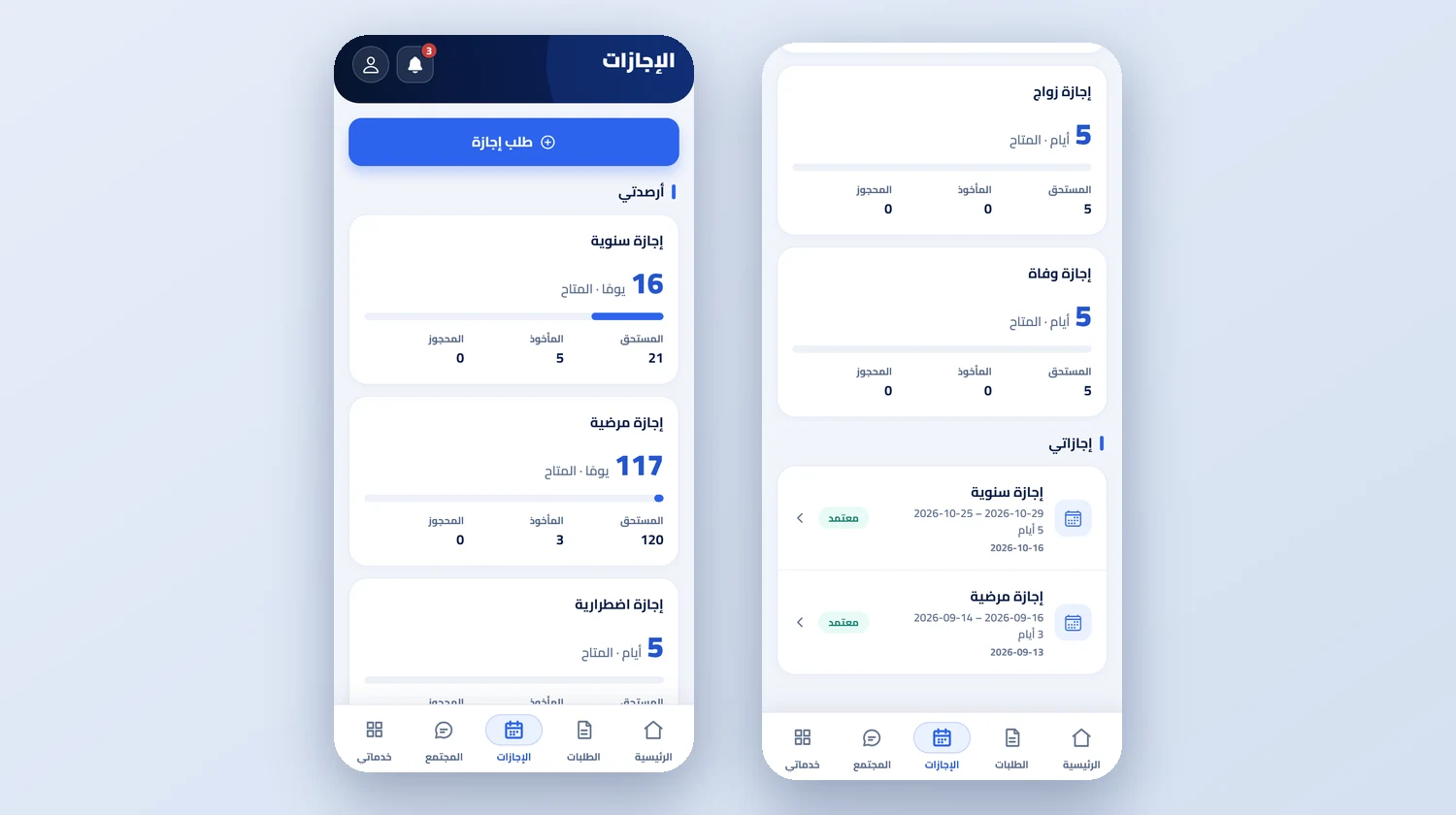
Inside the platform
The app is the employee's only door into the system: they sign in through it, punch through it and follow everything their company holds on them through it. It has a bar of five tabs, Home, Requests, Leaves, Community and My services, and every screen in it appears according to what your company has switched on and no more. This page explains what you do inside it step by step, what stays with management in the web interface, and what the app does not do for you, so that before your account arrives you know what you will find on your phone.
01
Signing in, language and device
Your company's admin opens an account for you, from your employee file and tells you your password. You sign in with your phone number and password. On first launch you pick your language from four, Arabic, English, Urdu and Hindi, each option shown in its own language, and you can return to it from My account. Your account links to the device you first signed in from. If you sign in from a new phone the app stops you and shows a dialog where you press agree, which sends a device change request to management, and you stay on the sign-in screen with a waiting message until they decide. If you grant the app only an approximate location, it warns you to switch on precise location, because the punch checks where you are. The app also has a light and a dark appearance.
02
The punch and the log
Home has a large circle for check-in and then check-out. You press and hold it for under a second until its ring fills, and lifting your finger early sends nothing. After check-in the app counts your minutes live inside the circle, and if you try to leave before your shift ends it asks for a confirmation showing the early-departure minutes and the shift end. Before each punch the app inspects your phone and rejects spoofed locations and emulators, and the company checks your punch place: one site, several or anywhere, as set for you. If your company switched on fingerprint or face verification, it comes before the punch. In the attendance log you see your month with your days present, absent, late and leaving early.
03
Requests and leave
A new request is one form built from the request types your company kept: a grid of categories (leave, permission and early leave, attendance correction, financial, documents and letters, job changes and complaint), and inside each category its types, each with a line of explanation, while the fields follow the type. Attachments are uploaded after the request is created. In its details you see the approval steps as a timeline with who owns each step, who decided and with what comment, and you chat with HR in a messaging-style conversation with a photo from the camera or gallery or a PDF file, with read ticks, and you cancel your request while it is pending. Under Leaves you find each type's balance, and if your company's policy allows it, a Permission now button appears so you can record a permission period with no prior request.
04
Payslips, documents and custody
At the top of Payslips is your latest pay with its net and period, then your allowances, loan instalments and deductions grouped, then the payslips that were paid and that management did not hide, newest first. Open a payslip to see earnings and deductions as lines with their amounts and the total of each, view it as a file or share it, and a notification reaches you when it is paid. In My documents are your papers and letters with their validity status, expired and near-expiry first, and you open each file or raise a request to add or update a document, which management approves before it appears in your file. In My custody you acknowledge receiving and returning each item with a clear button recorded with its time, and the medical insurance card shows your membership number and dependants read-only.
05
Acknowledgements, tasks and development
Action required gathers what waits for you: warnings and circulars awaiting acknowledgement, unanswered surveys, an open self-review, courses you are shortlisted for, and attendance days that need a justification request. A warning is not acknowledged by opening it but by the Acknowledge receipt button, and from that moment your objection period starts, with a conversation with HR beside it. Your tasks from the company's lists are finished with a Done button and a comment. Under performance you see your review results, submit your self-review once, acknowledge your interview minutes by typing your first name and family name, and answer the anonymous 360 review. Training has lessons with a quiz and a completion certificate, and a complaint is raised from the phone alone, confidential if you choose.