TAC HRTAC HR
An operations manager and an employee reviewing a tablet at the branch
By your role in the company

TAC HR for Branch Managers: Your Branch in View Before the Day Begins

Who is in, late or absent without notice at your branch, shifts the minutes are counted on, and your team's requests and tasks in one place

A branch manager is responsible for the team being complete and the shift running. In TAC HR you know who came in, who is late and who is absent without notice, you approve your team's requests, assign tasks and follow them to completion, all within your branch and department scope on the admin web.

Today's reality

What happens at the branch without a system

  • 01You learn that an employee has not come in when a colleague calls you or when work gets busy, not before the shift begins
  • 02An employee is twenty minutes late and it is counted by estimate, so your figures differ from HR's at payroll time
  • 03Shifts at the branch rotate between morning, evening and night, and whoever swaps theirs gets lost between one message and the next
  • 04Permission and overtime requests reach you in a chat group, so you agree by word of mouth and then payroll has nothing to rely on
  • 05You assign a task over a call, and you only know whether it was done when you ask a second time
With the platform

What changes in your branch's day

  • Your branch on today's dashboard

    Your dashboard shows present, late and absent counters for the staff in your scope alone, and you open the daily report with check-in and check-out times and the branch where each punched.

  • Silent absence reaches you

    Whoever is past the set grace after their shift began and has not punched, with no leave and no attendance request for the day, is flagged to you once a day, and the employee gets a reminder if the company switched it on.

  • Minutes counted on the employee's shift

    Lateness, early departure and partial absence are counted on the employee's own shift with its grace and days off, so you do not calculate them by hand and they do not differ from payroll's figures.

  • Your team's requests on one screen

    Permission, early leave, forgotten punch, overtime and shift or location change go through a route the company sets, and you decide and write your note in the request's chat.

  • Tasks with a date and a reminder

    You assign a task to an employee with a due date, the system reminds them the day before and on the day, and escalates it after the grace to its creator and their direct manager.

  • A punch accepted only in its place

    A punch outside the places allowed for the employee is rejected with its reason and distance, the system rejects spoofed and emulated locations, and you review rejected attempts on the web.

Inside the platform

How the system actually works at your branch

A branch manager carries a whole day: that the team is complete, that each employee starts their shift, that what needs a decision passes without delay, and that their figures match what reaches payroll. They have no time to gather that from messages. This page explains how TAC HR shows you your branch, what it works out for you, what asks for your decision and what it does not do, so that before your admin account arrives you know what you will open before the shift starts and what will reach you without opening anything.

01

Your branch on today's dashboard

Your admin account is given a scope of one or more branches or departments, so the dashboard and reports are limited to the staff in your scope, while a holder of the full permission sees the whole company. The dashboard shows today's counters, and you open the daily report with check-in and check-out times, the detailed one, the monthly summary and overtime. Whoever is past the set grace after their shift began, 120 minutes by default, and has not punched with no leave and no attendance request for the day, is flagged to their direct manager once a day, and if they have no manager with an admin account the attendance admins are flagged. The alert has no financial effect: absence is counted by the attendance report as it stands.

02

Shifts and minutes

A shift carries a start and end time, a lateness grace, an early-leave grace and days off, and is assigned to the employee so lateness is counted on their own shift. An employee can have more than one main shift in a day as long as they do not overlap in time, and for a shift crossing midnight the check-out limit is its end plus three hours, so it is not counted as forgotten. A shift missed entirely on a day when the employee attended another counts as partial absence by its minutes, and the gap between two shifts is never overtime. A change to a shift's times takes effect on an effective date and stays as a record that is never deleted, and an employee's shift changes by a Work time change request or a bulk assignment. Official holidays and weekly rest enter the reports, so their day is not counted as absence.

03

Requests and approval

Each request type has a route the company sets, with steps by role, by user or by the direct manager, so requests from those who report to you reach you on the requests screen. Their types include permission, early leave, forgotten check-in, late removal, overtime, shift change and location change. When you approve an overtime request its minutes are written to the attendance day, and the run counts them under the overtime source the company set. Whoever holds the on-behalf permission can raise a request for an employee within their scope, such as a forgotten punch, and you write your note in the request's chat with attachments. Automatic approval within limits stays off until the company switches it on.

04

Tasks and escalation

Task lists have columns the company sets, and every task has an owner and a due date. The system reminds the day before and on the day, then escalates after the grace, two days by default, to the task's creator and their direct manager. A daily job at 08:30 in the morning handles that reminder and escalation. Among the ready templates is Maintenance work with a location column and a priority, and Sales follow-up with a stage and a follow-up date. The assigned employee gets a notification of the task, sees it in My tasks on their phone and finishes it with a Done button, and you see the list on the web with who finished and who is late.

05

Protection and devices

Before each punch the app inspects the phone and rejects spoofed locations, emulators and modified devices, and the system checks the employee's punch place: one site, several or anywhere, rejecting what falls outside it with a message naming the nearest allowed site and the distance. A rejected attempt is recorded with its reason and distance and you review it on the web, and it is not shown to the employee. If your branch has a compatible fingerprint device with a private key, its punches enter the same attendance log that phone punches enter, and whatever cannot be recorded is kept in a rejected log with its reason. Attendance correction needs a dedicated permission, and each correction is recorded with what it was before and after and who made it.


Inside the interface

The attendance report as you open it before the shift

TAC HR for Branch Managers: Your Branch in View Before the Day Begins
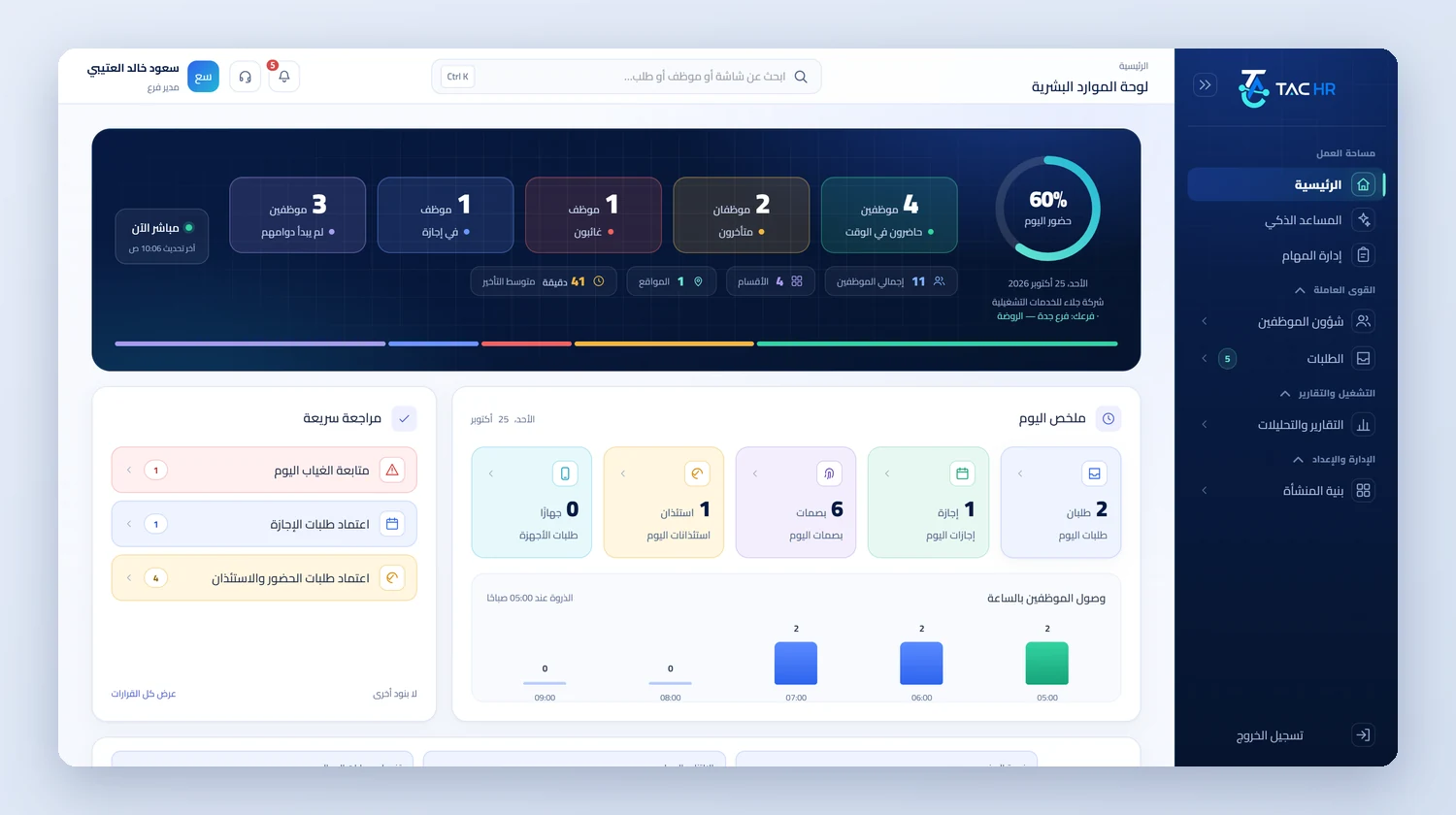
The admin home page with today's counters: on time, late, absent, on leave and not yet started, the attendance rate ring, the today summary cards, a quick review of pending decisions and a chart of employee arrivals by hour
The right services

The services your branch relies on

All services
An operating day

How your day runs on the platform

  1. 01

    Before the shift starts

    You open your dashboard and see who punched and who has not, and the silent absence alert reaches you about whoever has not punched once the set grace has passed

  2. 02

    Early in the day

    You approve permission and forgotten punch requests from the requests screen, reject an overtime request you do not need, and assign a stocktake task with a due date

  3. 03

    End of the day

    You see who was late and by how many minutes, review early departures, and check that tasks past their date were finished or escalated

  4. 04

    Month end

    You review your team's monthly attendance and overtime report before it enters the run, so your figures match HR's

The numbers

What the system works out for you

The figures come from a hypothetical example, computed by the system's own functions. The effect on your company is something you measure after rollout.

20 minutes
The lateness of an employee who arrived at 08:20 for a shift starting at 08:00, costing SAR 4.17 if their basic is SAR 3,000 and no lateness grace is set, and the same figure enters the run
2,400 minutes
The net of a five-day week between 08:00 and 17:00 with a 60-minute break, which is 480 minutes a day
SAR 187.50
Pay for 6 approved overtime hours for an employee on a SAR 5,000 basic, at an overtime rate of SAR 31.25 an hour shown with its formula on their payslip

Limits of what the platform offers a branch manager

Approving requests, assigning tasks and attendance reports are in the admin web interface, while the mobile app is for employees and has no approval screen or team tasks, so someone who is both an employee and a manager holds two separate accounts. A punch is never recorded without an internet connection, so a branch with weak coverage needs a steady connection at shift start. The system does not build the rota automatically or estimate how many people each shift needs: shifts are defined and assigned. Attendance correction needs a dedicated permission that not every admin holds, and what has entered a run in payment cannot be edited directly. The system counts the minutes and does not decide a penalty or a leave for you.

Industry questions

What branch managers ask before deciding

Does a branch manager see the whole company?

No. They see their branch and department according to the scope the company gives their admin account. An empty scope means the whole company and belongs to the holder of the full permission.

Can I approve while I am away from the branch?

Approving requests happens on the admin web, and there is no approval screen in the mobile app, which is for employees. If you are also an employee you hold a separate app account for your own punch and requests.

Does the punch record if the internet goes down?

No. Every punch needs an internet connection because the system checks the location and the device's integrity at that moment. What was missed is recorded with a forgotten check-in request that goes through the approval route.

Can I assign one task to several employees at once?

A task is assigned to one employee and you follow it to completion, and you get an escalation if it slips past its date after the grace. Assigning to a whole team with a completion rate for it is not in the system today.

Request a demo on your branch's shifts

We tailor the demo to shifts that look like yours, and start with what throws your day off now: attendance, requests or tasks.