Inside the service
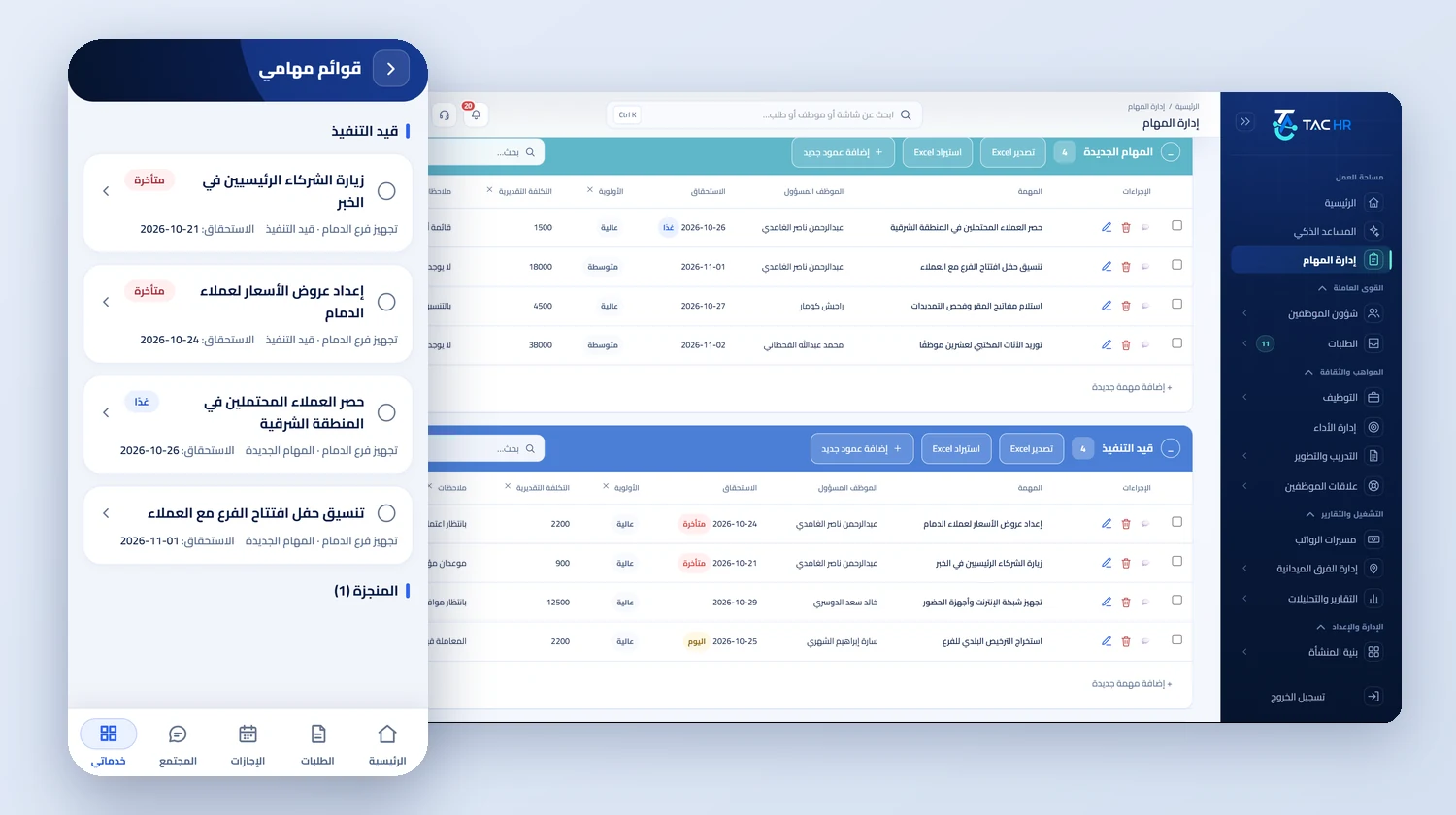
A task without a known owner or date does not get finished, it gets forgotten. This service gives every task a list it belongs to, a group that tells its state, and a responsible employee and due date the system reads every morning. Take a facilities maintenance company in Jeddah with three field crews and a coordination office. The coordinator creates a maintenance follow-up list from the ready template, adds the week's work orders and assigns each one to a technician by name with a date. The technician gets a reminder on the phone and marks the task done on the spot, and the coordinator sees what is overdue without calling anyone.
01
A list you can start three ways
On the task lists screen, the create task list button opens a three-step wizard: creation method, then source, then review and name. The first method is creating by hand with the task and responsible employee columns, the second is importing an Excel file, and the third is choosing a ready template. There are four templates: sales follow-up with contact number, deal value, a stage from first call to closed, and follow-up date; client follow-up with the client and the request status; maintenance work with location coordinates, a priority from urgent to normal, and estimated cost; and a project plan with the phase and start and end dates. You then review the columns, add any you want, name the list and choose who can see it. The list and its two default groups are created together, or not at all.
02
Columns designed for your team's work
On top of the two fixed columns, the add-column button in any group's header offers five types: text, number, status with its options written one per line, a date picked from the system's unified calendar, and location coordinates for where the work order is. Deleting a column drops its values from every task in the list, so it asks for confirmation by name first. Every list starts with a new tasks group and a completed tasks group, and you add a new task group with its own colour bar, collapse or expand groups, and search inside each one. You type a task on the add-task line and press Shift and Enter together to add the next one without leaving the field. A list's structure, its name, visibility, columns and deletion, belongs to its creator or the system administrator alone.
03
From Excel and back without retyping
When creating from a file, you upload an Excel file or a plain-text table of up to 5 MB, read by the system: the first row is the column headers, the first column the task names, and the remaining columns become custom columns whose types you review before saving. The wizard then states how many tasks will be imported, and they all go into the new tasks group. In an existing list, the import button in each group's header adds the file's tasks to that group. A file with no data rows, or whose first column holds no task names, is refused with a message saying what is missing. In the other direction, the export button produces the group's tasks with the task, responsible employee, due date and custom columns, as a file named after the list and group that opens in Excel in Arabic straight away.
04
A due date that never passes silently
Every morning at half past eight Riyadh time, the system goes over open tasks that have a date and an owner. The day before the due date the technician receives a task due tomorrow reminder, and on the day a task due today reminder, on the phone and on the panel if they have an admin account. If the task is still open once the escalation window passes, two days by default, or one or three depending on your company's setting, the task's creator and the assignee's direct manager, if the manager has an admin account, receive an overdue task notification with the assignee's name and date. So a car park lighting task due on Thursday is a reminder to the technician on Wednesday and Thursday and is escalated on Saturday morning if not done. Each stage is sent once, and moving the task to completed stops the rest.
05
Employees see only what is assigned to them
List visibility on the web applies to admin accounts: private lists to their creator, public ones to every admin, and group lists to those the creator picked by name. Employees do not see lists. Instead, their app has a screen of their own tasks from every list, open ones first by nearest date, with an overdue, today or tomorrow badge and a comment count. They open a task, read its comments and write an update under their own name, and tap done to move it to the completed group of its list, which stops its reminders. When a task is assigned to them or someone comments on it, they are notified, and the author of a comment is never notified of their own words. Every creation, move, deletion and comment is recorded in the activity log with who did it and when, while the comment text itself stays out of the log.